Smartphone Privacy: App Permissions, Location Controls, and Updates
Audit microphone, camera, and location permissions on iOS and Android, curb unnecessary background app activity, and strengthen lock-screen and system update habits.
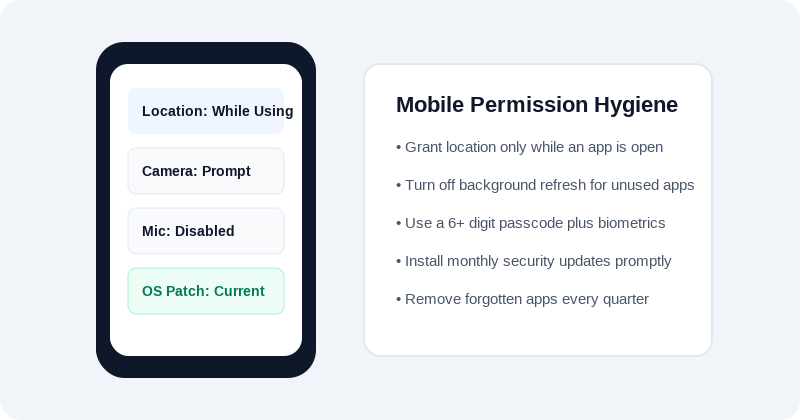
For many people, a smartphone holds more personal information than any filing cabinet or desktop computer ever did: private messages, photos, banking apps, maps history, health notes, and live location data. Fortunately, both iOS and Android have improved their privacy dashboards significantly, allowing you to rein in unnecessary data collection in just a few taps.
Auditing App Permissions: Grant Only What Fits
When you open a new app for the first time, it often asks for access to your camera, microphone, contacts, photos, or Bluetooth devices. In the rush to finish setting up an app, it is easy to tap “Allow” to every pop-up without thinking twice.
A practical test is simple: Does this permission match the app’s core job? A video-calling app clearly needs your camera and microphone; a flashlight app, calculator, or wallpaper gallery does not. Both Apple iOS (Settings → Privacy & Security) and Android (Settings → Security & privacy → Permission manager) group permissions by category so you can inspect every app with access to:
- Contacts: Sharing your address book uploads friends’ names and phone numbers as well as your own. Grant contact access only to messaging, dialer, or email apps where you truly need it.
- Photos and Media: Instead of granting “Allow Full Access” to your entire photo library, choose “Select Photos” or “Limited Access” so an app only sees the specific picture you pick.
- Microphone and Camera: Set these to “Ask every time” or “While using the app” for anything outside your main communication tools.
Location Settings: Precise vs. Approximate
Location tracking is one of the most revealing signals a smartphone generates, because regular patterns quickly reveal where you live, work, shop, and sleep. Yet many apps only need to know your general city—not your exact street corner.
Both iPhone and Android let you toggle off Precise Location on a per-app basis. Keep precise location enabled for turn-by-turn navigation, ride-hailing, and food delivery, and switch to Approximate Location for weather forecasts, local news, and retail store locators. Also avoid choosing “Always Allow” unless an app genuinely requires background tracking (such as a family safety tracker you intentionally configured).
Watch for Visual Recording Indicators
Both iOS and Android display a small green or orange status dot at the top of the screen whenever an app accesses your camera or microphone. If that indicator appears while you are just reading an article or playing a puzzle game, open your permission settings immediately and revoke access.
Curbing Background App Activity
Apps do not stop working the moment you switch back to your home screen. Many social, shopping, and utility apps wake up quietly in the background to sync feeds, upload diagnostics, or refresh location pings—draining battery life and mobile data while sharing telemetry.
On iPhone, open Settings → General → Background App Refresh and disable it for apps that do not need real-time updates (games, shopping apps, loyalty cards, and streaming apps work fine when refreshed only upon opening). On Android, open Settings → Apps, tap rarely used apps, and set battery usage to Restricted so they stay asleep when closed.
Device Security: Lock Screens, Biometrics, and Theft Protection
If your phone is lost on a train or left on a café table, physical lock-screen settings determine whether a stranger gets a blank wall or instant access to your messages and banking apps.
- Use at least a 6-digit PIN or alphanumeric passcode: Simple 4-digit codes are far easier for someone to shoulder-surf in public.
- Hide sensitive lock-screen previews: Configure notifications to show previews only after Face ID, Touch ID, or your fingerprint unlocks the screen—preventing six-digit MFA login codes from appearing on a locked phone.
- Enable remote tracking and erase: Keep Apple’s Find My or Google’s Find My Device enabled so you can locate, lock, or wipe a lost phone remotely.
Why System Updates Should Not Be Ignored
It is tempting to tap “Remind Me Later” when your phone offers a system update, especially if you worry about battery changes or interface tweaks. However, monthly Android security patches and iOS point releases frequently fix vulnerabilities that can be triggered simply by receiving a malformed image, link, or wireless packet.
Turn on automatic overnight downloads and installations when plugged into Wi-Fi and power, and uninstall apps that have been abandoned by their developers for several years.
Privacy-Conscious Everyday Phone Habits
Beyond permission menus, small day-to-day habits make a real difference when you travel or use public spaces:
- Disable automatic connection to open Wi-Fi: Turn off “Auto-Join” for free airport or café networks so your phone does not silently connect to an unfamiliar hotspot with the same name as one you visited months ago.
- Carry your own wall charger or power bank: Plugging directly into an AC power outlet or your own portable battery avoids trusting unknown public USB data ports.
- Audit shared photo albums: Periodically check whether old family photo links set to “Anyone with the link” are still necessary, and expire links you no longer need.
Monthly Smartphone Privacy Sweep
- Delete any app you have not opened in 60 days.
- Switch weather and shopping apps from Precise to Approximate location.
- Hide notification message content on the lock screen.
- Check Software Update to confirm the latest security patch is installed.
- Reset or limit personalized advertising IDs under your phone’s privacy settings.