Browser Privacy: Cookies, Tracking Protection, and Safe Extensions
Understand what cookies actually store, configure built-in browser tracking protection, know what private browsing hides (and does not hide), and vet extensions safely.
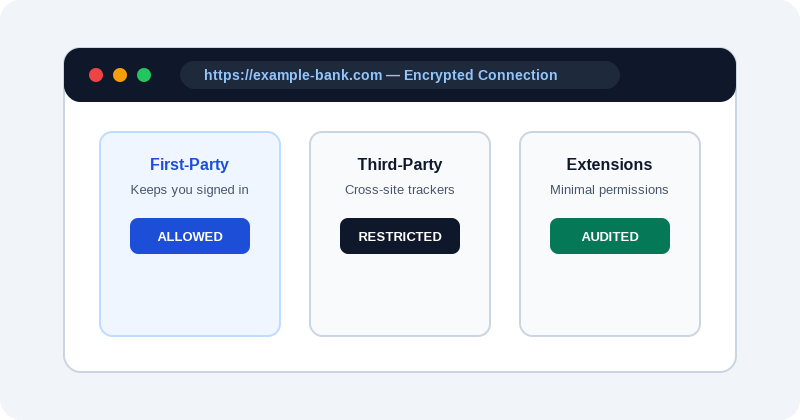
Your web browser is the tool you use to read news, check bank balances, compare prices, and stay in touch with friends. Because so much daily life flows through it, browsers have also become the main place where websites measure visitor activity. Understanding how browser privacy features work—and where their limits lie—helps you keep your browsing fast, comfortable, and far less intrusive without breaking the websites you rely on.
Cookies Explained Without the Jargon
A cookie is simply a small text file that a website asks your browser to remember on your device. Not all cookies are bad; in fact, the modern web relies on helpful cookies every minute.
- First-party (essential) cookies: Created by the exact website shown in your address bar. These keep items in your shopping cart, remember whether you are signed in, and save your language or dark-mode preference.
- Third-party tracking cookies: Created by external scripts embedded across many unrelated websites. When the same analytics or advertising network appears on dozens of sites you visit, those cookies can link your visits together to build an interest profile.
Because blocking all cookies would sign you out of every account after each click, modern browsers focus on restricting third-party cookies while keeping essential first-party cookies working normally.
Built-In Browser Tracking Protection Settings
Every major desktop and mobile browser now includes built-in tracking protection. Spending two minutes reviewing these defaults makes an immediate difference:
- Firefox: Open Settings → Privacy & Security. Enhanced Tracking Protection is enabled on “Standard” by default, or you can choose “Strict” if you rarely encounter broken checkout widgets.
- Safari (Mac, iPhone, iPad): Intelligent Tracking Prevention blocks cross-site tracking automatically under Settings → Privacy. Keep “Prevent cross-site tracking” switched on.
- Microsoft Edge: Open Settings → Privacy, search, and services and set Tracking Prevention to “Balanced” (recommended) or “Strict.”
- Google Chrome: Review Settings → Privacy and security → Third-party cookies and Ad privacy to disable ad topics and site-suggested ads if you prefer less behavioral profiling.
Helpful Tip: Separate Profiles for Work and Personal Life
If you share a home computer or manage both personal and workplace accounts, create separate browser profiles. Each profile keeps its own bookmarks, logins, and cookies isolated from the others.
What Private Browsing Actually Hides (and What It Doesn’t)
Incognito mode in Chrome, Private Browsing in Safari and Firefox, and InPrivate windows in Edge are widely misunderstood. Knowing what a private window actually does prevents false confidence.
What private browsing DOES: When you close all private tabs, your browser discards the local browsing history, temporary form entries, and session cookies from that window. That makes it useful when checking an account on a family member’s laptop or preventing local autocomplete suggestions from popping up later.
What private browsing DOES NOT do: It does not hide your IP address or activity from your internet service provider (ISP), your workplace or school Wi-Fi administrator, or the websites you log into during that session. Downloaded files and bookmarks you explicitly save also remain on your computer after the private window closes.
Safe Browser Extensions: Less Is Almost Always More
Browser extensions can add password autofill, grammar checks, or tracker blocking, but every extension you install asks for permission to read—and sometimes modify—pages you visit. Over time, unused or abandoned extensions become a common privacy and security weak spot.
Follow three simple rules when installing extensions:
- Install only from official stores: Use the Chrome Web Store, Firefox Add-ons, or the Mac App Store rather than random download sites.
- Audit permissions carefully: Ask why a simple calculator or weather extension would need permission to “Read and change all your data on all websites.” If the permission looks broader than the job, skip it.
- Trim your list quarterly: Remove extensions you have not used in the last three months. Fewer extensions also keep your browser noticeably faster and reduce memory usage.
HTTPS Basics: Why the Padlock Matters
Look at the start of any web address: https:// versus http://. The S stands for Secure, meaning the connection between your browser and the website server is encrypted using TLS (Transport Layer Security). Encryption prevents someone snooping on a café, airport, or hotel Wi-Fi network from reading passwords, search terms, or card numbers in transit.
Modern browsers increasingly warn you before loading unencrypted http:// pages, and settings like HTTPS-Only Mode (available in Firefox, Chrome, and Edge) automatically upgrade connections to encrypted versions whenever supported. Keep in mind, though, that HTTPS only protects the tunnel between you and the site—a scammer’s lookalike website can still have an HTTPS certificate, so you should always verify the domain name itself before entering personal information.
5-Minute Browser Checkup
- Confirm your browser is updated to the latest version.
- Turn on Enhanced Tracking Prevention or Balanced tracking protection.
- Enable HTTPS-Only Mode or “Always use secure connections.”
- Remove unrecognized or unused browser extensions.
- Disable “Allow sites to check if you have payment methods saved” if you do not use browser wallet autofill.