Online Security Basics: Passwords, MFA, and Spotting Scams
Build strong, unique passwords without memorizing dozens of codes, enable multi-factor authentication, spot phishing links, and prepare clean account recovery options.
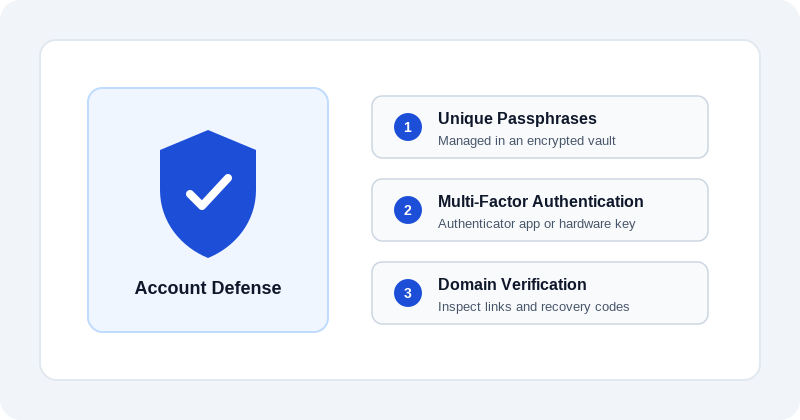
Most people think online security requires expensive software or memorizing complicated rules. In reality, a handful of simple habits stop the vast majority of everyday account takeovers, billing scams, and accidental lockouts. Whether you shop online, manage household banking, or keep family photos in cloud storage, building a dependable security routine takes less than an hour and lasts for years.
Why Strong, Unique Passwords Still Matter
The single biggest mistake people make online is reusing the same password—or slight variations like adding a number at the end—across multiple websites. When a small online store, forum, or newsletter suffers a data breach, automated tools immediately test those leaked email-and-password pairs on major banks, email providers, shopping portals, and social accounts. Security researchers call this credential stuffing, and it succeeds purely because passwords get reused.
A strong password does not need bizarre symbols that are painful to type on a phone. Length and uniqueness matter far more than complexity tricks. A randomly generated 16-character password or a four-word random passphrase (such as kettle-maple-orbit-ridge) is dramatically harder for software to guess than a short 8-character password with an exclamation mark.
Priority Rule: Protect Your Primary Email First
Your main email inbox is the master key to almost every other service you use. Anyone who controls your email can trigger password resets for shopping, banking, and social accounts. Give your primary email its own unique, extra-strong password and lock it down before anything else.
How Password Managers Remove the Memory Burden
No human being can reliably invent and remember 80 unique passwords. A password manager solves this by storing all your logins inside one encrypted vault unlocked by a single master passphrase. Every modern browser (Chrome, Firefox, Safari, Edge) includes a built-in password tool, and dedicated cross-platform managers such as Bitwarden, 1Password, or Apple Passwords work smoothly across Windows, Mac, iPhone, and Android.
Using a password manager gives you two practical advantages right away. First, it generates unique, high-strength passwords with one click whenever you create a new account. Second, its autofill feature checks the exact website domain before filling your credentials—meaning it will silently refuse to autofill your password on a convincing lookalike scam page.
Multi-Factor Authentication (MFA) Explained Simply
Even the strongest password can occasionally leak through a phishing page or compromised service. Multi-factor authentication (MFA)—often called two-factor authentication (2FA)—adds a second check after you enter your password, usually something you physically possess such as your phone or a small hardware key.
- Authenticator apps (recommended): Apps like Google Authenticator, Microsoft Authenticator, Ente Auth, or Bitwarden generate time-based 6-digit codes offline on your phone. They cannot be intercepted by swapping your mobile SIM card.
- Passkeys and hardware keys: Passkeys use your phone or computer’s fingerprint or face unlock tied cryptographically to the real website, making them virtually immune to fake login pages.
- SMS text codes: Receiving a code by text message is far better than having no MFA at all, especially on banking accounts that do not yet offer app-based codes. However, upgrade to an authenticator app or passkey whenever a service supports it.
Recognizing Suspicious Websites and Phishing Messages
Scammers rarely break into well-protected systems; instead, they persuade busy people to hand over login codes or payment details voluntarily. Phishing messages commonly arrive disguised as urgent delivery notices, bank fraud alerts, subscription renewal warnings, or unexpected password-reset prompts.
Before clicking any link in an email or text message, pause for five seconds and inspect three signals:
- Check the exact domain name: Look at the characters immediately before
.com,.org, or.co.uk. Addresses likesupport-paypa1-alerts.comoraccount.verify-example.netbelong to scammers, even if the logo inside the email looks authentic. - Beware artificial urgency: Phrases such as “your account will be closed in 2 hours” or “immediate action required” are designed to rush you past normal caution.
- Navigate independently: Instead of clicking the link inside an urgent message, open a fresh browser tab, type the company’s official address or use your saved bookmark, and check your account alerts directly.
Preparing Clean Account Recovery Options
Locking down an account is only half the job—you also want to make sure you do not lock yourself out if your phone is lost, damaged, or replaced. Almost every service provides one-time backup recovery codes when you enable MFA.
Print those recovery codes and store them in a safe folder at home, or save a copy inside an encrypted backup separate from your phone. Verify that your recovery email address and mobile number are current, especially if you changed phone carriers or retired an old college or work email inbox.
Common Online Security Mistakes to Avoid
Quick Habits Check
- Avoid saving sensitive passwords on shared computers: Never check “Keep me signed in” on hotel, library, or borrowed laptops.
- Stop dismissing software update prompts: Security patches close actively exploited holes in browsers and operating systems.
- Do not share one-time verification codes: Legitimate customer support agents never ask you to read back a 6-digit login code over the phone or in chat.
- Review connected third-party apps: Twice a year, visit your Google, Apple, or Microsoft account settings and revoke access from apps you no longer recognize.
You do not need to fix every account in a single evening. Start today with your primary email, your main bank, and your cloud storage account: give each a unique password, turn on MFA, and store the backup codes safely. Once those pillars are protected, every remaining account can be upgraded gradually whenever you sign in.