Home Wi-Fi and Network Basics: Router Security and Troubleshooting
Secure your home router with WPA2 or WPA3, separate smart devices onto a guest network, keep router firmware current, and diagnose slow connections methodically.
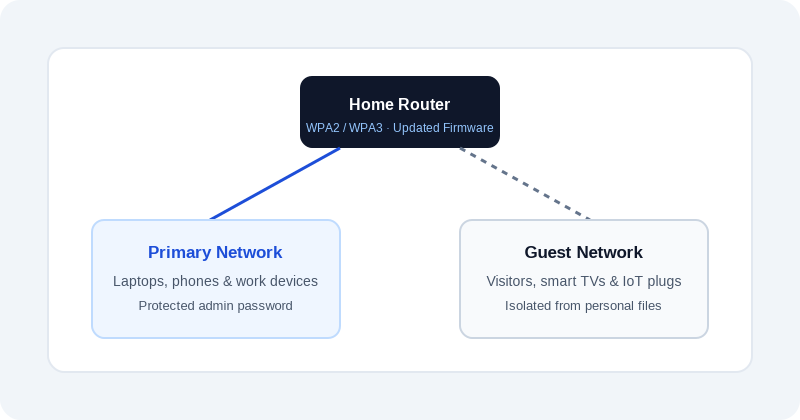
Your home Wi-Fi router quietly connects every laptop, phone, smart TV, printer, and thermostat in your house to the internet. Yet once a router is plugged in and working, most households never touch its settings again. Spending twenty minutes hardening your router improves both security and connection reliability without requiring any networking background.
First Steps in Router Security
Every router has two separate passwords that serve completely different jobs: the Wi-Fi password that devices use to join your wireless network, and the router admin password used to log into the router’s control panel (usually reached via an address like 192.168.1.1 or your provider’s mobile app).
Many routers ship with a generic admin login such as admin / password printed on a bottom sticker. Changing that admin password immediately prevents anyone connected to your Wi-Fi—or a malicious script on a local device—from changing your DNS settings or opening remote ports. While you are in the admin panel, verify that Remote Management / WAN Administration is turned off so nobody on the public internet can attempt to sign into your router’s setup page.
WPA2 vs. WPA3: Choosing the Right Encryption
Wi-Fi security protocols scramble wireless traffic traveling through the air between your devices and your router. Inside your wireless security settings, you will typically see several options:
- WPA3-Personal (best for newer hardware): Offers stronger protection against offline password guessing and protects traffic even if someone captures data in the air.
- WPA2/WPA3 Transitional Mode (best compatibility): Lets modern phones and laptops connect using WPA3 while older printers or smart speakers continue working reliably via WPA2-AES.
- WPA2-AES (solid baseline): If your router is more than five years old and lacks WPA3, choose WPA2-PSK (AES). Avoid legacy WEP or TKIP options, which are outdated and easily broken.
Also disable WPS (Wi-Fi Protected Setup) if your router allows it. WPS push-button or 8-digit PIN pairing was built for convenience years ago, but the PIN method has well-known weaknesses that are unnecessary when modern devices can share Wi-Fi credentials cleanly via QR codes.
Using Guest Networks for Visitors and Smart Devices
Modern routers make it effortless to turn on a separate Guest Wi-Fi network with its own name and password. Most people assume guest networks are only for weekend houseguests, but they are equally valuable for everyday “smart home” gadgets.
Smart plugs, inexpensive Wi-Fi cameras, robot vacuums, and smart TVs rarely receive security updates for as long as laptops or phones. Placing those devices—along with visiting friends’ phones—onto the Guest Network (with Client Isolation enabled) prevents them from communicating directly with your work computer, home printer, or shared network drives.
Give Your Network a Neutral Name
Avoid naming your Wi-Fi SSID after your family surname, apartment number, or street address. A neutral name like MapleNet or StudioNorth reveals nothing personal to passersby within wireless range.
Why Router Firmware Updates Matter
Just like phones and laptops, routers run small operating systems called firmware. Manufacturers release firmware updates to fix stability bugs, patch wireless security flaws, and improve speed. If your router is provided and managed by your internet service provider, updates usually install automatically overnight. If you bought your own router, check its mobile app or web portal every few months—or enable automatic firmware updates if offered.
When a router reaches end-of-life and stops receiving security updates altogether (often after five to seven years), replacing it is one of the best investments you can make for household reliability.
Practical Home Network Troubleshooting
When video calls stutter or pages crawl, work through the simplest causes before calling support:
- Check router placement: Keep the router off the floor, out of enclosed cabinets, and away from thick brick walls, aquariums, or microwave ovens.
- Understand 2.4 GHz vs. 5 GHz bands: The 5 GHz band delivers faster speeds at shorter range (ideal for living-room laptops and TVs), while 2.4 GHz travels farther through walls at slower speeds (good for distant bedrooms or smart sensors).
- Run a wired speed test: Plug one laptop directly into the router with an Ethernet cable to separate an ISP line outage from local Wi-Fi interference.
- Power-cycle properly: Unplug both modem and router for 30 seconds, plug in the modem first until lights stabilize, then power on the router.
Understanding Home DNS Settings
Every time you type a website name such as example.com, your device asks a DNS (Domain Name System) resolver to look up the server’s numerical IP address—much like checking a phone book. By default, your router uses your internet provider’s DNS servers. Many modern routers and browsers also let you choose reputable encrypted DNS providers (such as Cloudflare’s 1.1.1.1 or Quad9’s 9.9.9.9) to reduce eavesdropping on plain DNS lookups and block known malicious domains before a page loads.
Common Wi-Fi Mistakes to Fix Today
- Leaving the default router admin password unchanged.
- Using an easy-to-guess Wi-Fi password such as a phone number or street name.
- Sharing your main Wi-Fi password with every visitor and smart appliance instead of using a Guest Network.
- Tucking the router inside a metal media cabinet where heat and shielding degrade signal strength.