Backups and Data Safety: Cloud, Local Drives, and Recovery Planning
Use the practical 3-2-1 backup mindset combining cloud storage and external drives, organize folders cleanly, and test a real file restore before an emergency.
Computers fail, phones get dropped in puddles, drives wear out silently, and ransomware or accidental deletions happen when you least expect them. A reliable backup routine turns what could be a devastating loss of family photos, tax records, or creative work into a minor afternoon inconvenience.
The 3-2-1 Rule Made Practical
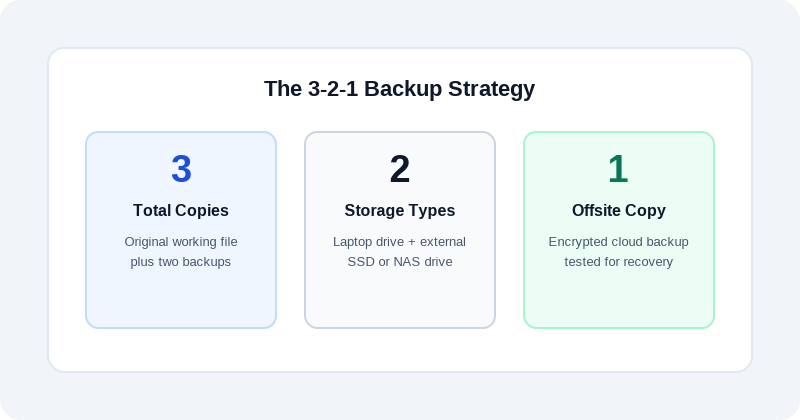
Information technology teams rely on a straightforward guideline called the 3-2-1 backup strategy, and it translates cleanly to any household:
- 3 copies of your important data: Your original working files plus two separate backup copies.
- 2 different storage types: For example, your computer’s internal drive plus an external USB solid-state drive (SSD).
- 1 copy stored offsite: Usually an encrypted cloud backup service, or an external drive kept safely at a trusted relative’s house.
Why do both local and cloud copies matter? If your laptop stops booting, a local external drive restores gigabytes of photos in minutes without waiting days for a slow internet download. Conversely, if a fire, theft, or power surge damages both your computer and the drive sitting next to it, the offsite cloud copy protects your irreplaceable memories.
Cloud Sync vs. True Cloud Backup
One of the most common misunderstandings in data safety is assuming that syncing folders like iCloud Drive, Google Drive, OneDrive, or Dropbox is automatically a full backup.
Sync services are wonderful for accessing documents across your phone and laptop, but they mirror changes rapidly. If you accidentally delete a folder—or a program corrupts a spreadsheet—the sync tool often mirrors that deletion across all devices within seconds. Look for services that include version history (allowing you to roll back files 30 days or more) or pair your cloud folder with dedicated automated backup software such as Backblaze, Apple Time Machine, or Windows File History.
Protect Against Accidental Deletion With Versioning
Always check whether your backup tool keeps previous file versions rather than immediately overwriting yesterday’s copy. Version history is what rescues you when you realize a document was overwritten two weeks ago.
Choosing and Caring for External Drives
An external USB hard drive or portable SSD costs less than a typical repair bill and backs up an entire computer automatically in the background. When choosing one:
- Size it generously: Buy an external drive with at least double the storage capacity of your computer’s internal drive so it has room for months of incremental history.
- Turn on drive encryption: Both macOS (Time Machine Encrypt Backup) and Windows (BitLocker) let you lock your backup drive with a passphrase. If the drive is ever misplaced or stolen, your tax returns and personal photos remain unreadable.
- Disconnect periodically if guarding against ransomware: If you do manual monthly backups to a spare drive, unplugging it after completion guarantees malware on your PC cannot touch that drive.
File Organization That Makes Backups Easier
You do not need to back up downloaded software installers or temporary browser caches—focus on the irreplaceable files you created or received. Organizing files into predictable top-level folders makes backing up and restoring dramatically faster:
Documents/Finance-and-Tax/(sorted by year, e.g.,2025,2026)Documents/Identity-and-Medical/(scans of passports, warranties, insurance policies)Pictures/Family-Archive/(organized by year and event)Projects/(creative work, resumes, household records)
Avoid storing important files permanently on your Desktop or inside your Downloads folder, where cleanup tools or rushed selections frequently wipe them out.
Recovery Planning: Test Before You Need It
An untested backup is only a wish. Twice a year, spend five minutes practicing a real recovery drill:
- Pick a sample document and an older photo inside your cloud backup or external drive.
- Restore both files to a temporary folder on your desktop and open them to confirm they are complete and readable.
- Confirm you still remember (or have safely stored in your password manager) the encryption passphrase for your external drive and the recovery key for your cloud account.
Backing Up Phones and Authenticator Apps
Do not overlook your smartphone when planning backups. Enable automatic encrypted backups in iCloud (iPhone) or Google One (Android), and verify your photo library is actually finishing its uploads over Wi-Fi rather than stalling when cloud storage fills up.
Just as importantly, check how your multi-factor authenticator app handles device replacement. Modern authenticator tools let you sync encrypted tokens across devices or export a backup QR code before you trade in or reset an old phone—preventing painful account lockouts on moving day.
Preventing Accidental Data Loss
- Never rely on a single USB flash drive as your only copy of critical records.
- Wait for the “Safe to Eject” notice before unplugging external drives.
- Export a periodic backup of your password manager vault and MFA recovery codes onto an encrypted medium.
- Keep at least 15% free space on your main computer drive so operating system updates and backup snapshots run smoothly.