Everyday Digital Safety Checklist: Putting Your Routine Together
Turn the previous five guides into a calm 15-minute monthly maintenance checklist covering accounts, browsers, phones, Wi-Fi, and verified backups.
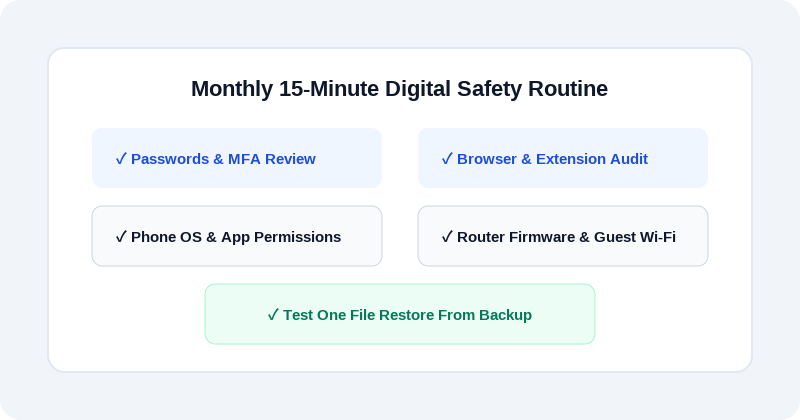
Learning about passwords, browser cookies, smartphone permissions, home routers, and backups is helpful—but turning good intentions into a light, repeatable routine is what keeps your digital life calm over the long haul. You do not need daily security chores. One focused 15-minute check each month handles almost everything that matters.
Putting All Five Pillars Into One Simple System
Each guide in this series strengthens a different layer of your everyday technology setup so no single slip creates a crisis:
- Accounts (Guide 1): Unique passwords inside a password manager plus app-based MFA mean a leaked password on one website cannot unlock your email or bank.
- Browsing (Guide 2): Built-in tracking protection, HTTPS connections, and trimmed extensions minimize silent tracking and risky browser add-ons.
- Mobile Devices (Guide 3): Sensible location and camera permissions plus timely phone updates protect the device you carry everywhere.
- Home Network (Guide 4): WPA2/WPA3 encryption, a changed router admin password, and a separate guest network keep smart gadgets isolated from personal files.
- Backups (Guide 5): Local and offsite copies ensure hardware failure or an accidental click never erases years of memories or documents.
Your 15-Minute Monthly Maintenance Checklist
Pick a recurring day—such as the first Sunday morning of the month—and run through these five quick checks with a cup of coffee:
Monthly Digital Safety Routine
- Minutes 1–3 — Updates: Check for pending operating system, browser, and smartphone security updates and let them install.
- Minutes 4–6 — Apps & Extensions: Delete any phone apps or browser extensions you have not used in the past two months.
- Minutes 7–9 — Account Alerts: Glance at your password manager’s weak or reused password warning list and upgrade one old login.
- Minutes 10–12 — Backups: Confirm your cloud backup completed recently and plug in your encrypted external drive for an incremental sync.
- Minutes 13–15 — Router & Recovery: Verify no unfamiliar devices are sitting on your primary Wi-Fi network, and confirm your recovery contacts remain current.
What to Do When Something Feels Off
Even cautious people occasionally click a convincing link or notice unusual behavior on a device. Having a calm response sequence keeps small mistakes from snowballing:
- If you entered a password on a suspicious page: Immediately visit the real service directly by typing its web address, change that password, revoke active login sessions, and verify MFA is active. If you reused that password anywhere else, change those accounts next.
- If your browser suddenly shows unfamiliar toolbars or search pages: Open your browser’s extensions list, remove anything added recently, and reset your default search engine and startup page.
- If your phone feels hot or drains rapidly after installing a new app: Uninstall the recent app, reboot the phone, and review battery and permission usage in system settings.
- If you receive an unexpected MFA prompt you did not trigger: Deny the request immediately, because someone likely already has your password. Update that account’s password right away.
Shared Household Habit: Teach Without Scare Tactics
If you help parents, kids, or partners manage their phones and laptops, avoid overwhelming them with fear or technical terms. Setting up a shared password manager, enabling automatic updates, and agreeing on a “pause and verify before sending money or codes” family rule protects everyone far more effectively than lectures.
If You Only Have 20 Minutes Tonight: Where to Start
If reading six guides at once feels like a long to-do list, ignore the urge to overhaul everything simultaneously. Focus on the three highest-impact actions first, in this exact order:
- Lock down your primary email: Give your main email inbox a brand-new, unique passphrase and enable app-based MFA, then save the recovery codes offline.
- Turn on automatic device updates and backups: Confirm your phone and laptop install security patches automatically and that your irreplaceable documents and photos are syncing to an offsite backup.
- Tighten browser and router defaults: Turn on tracking protection in your main browser and replace any factory default admin password on your home Wi-Fi router.
Staying Calm and Independent Online
Technology evolves continuously, and new scams appear every season, yet the underlying principles rarely change: pause before reacting to urgent demands, keep software current, separate critical accounts with unique logins, minimize unnecessary permissions, and maintain independent backups. After major annual operating system updates on your phone or laptop, take five minutes to glance through privacy settings again, since new features occasionally introduce default data-sharing toggles.
Bookmark this guide series whenever you set up a new phone, switch internet routers, or help a family member organize their files. With these fundamentals in place, you can enjoy modern tools with confidence—spending far less time troubleshooting and more time getting things done.
Optional Recommended Tool Directory
Looking to explore vetted password managers, privacy tools, or backup utilities? This external partner link is clearly separated from site navigation.